How to Choose a Power Bank That Can Charge a Laptop?
Your laptop battery dies. You reach for a power bank. But it does nothing.
This happens more often than you think. Not every power bank can charge a laptop. Most are built for phones and tablets only.
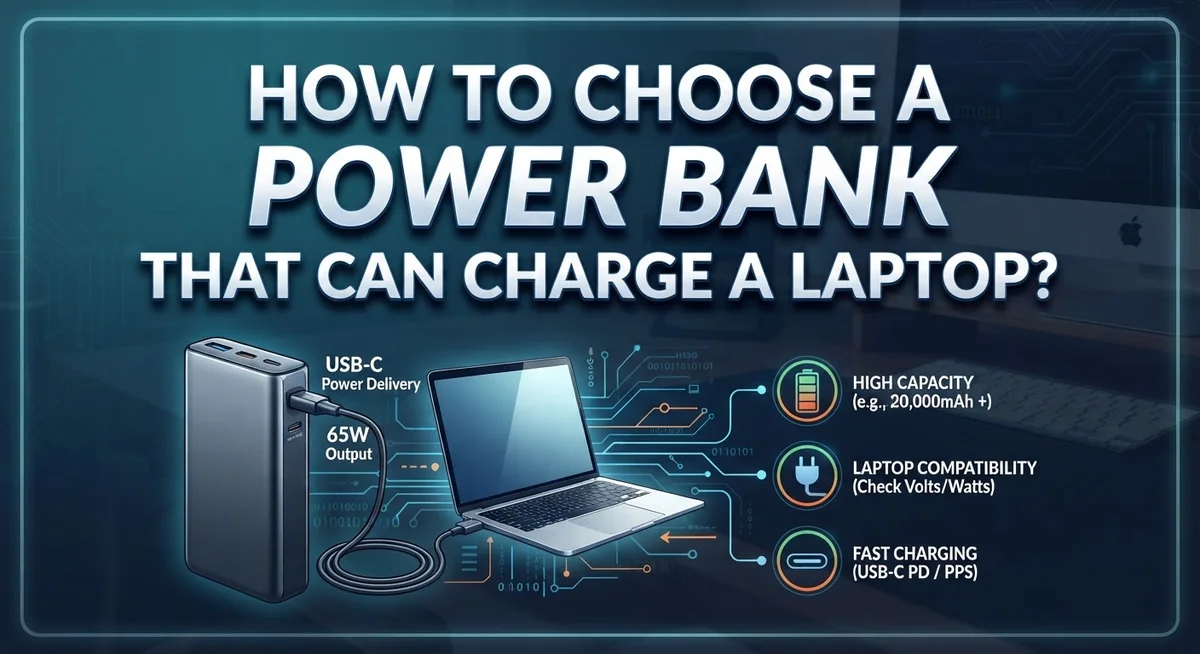
Laptops need much more power to charge properly. They require USB-C Power Delivery, or PD, technology. They also need higher wattage than a typical phone charger provides.
Using the wrong power bank wastes your time. It can even leave your laptop stuck at a low battery. Some cheap options might damage your device too.
So how do you pick the right one?
This guide breaks it all down for you. We will explain why wattage matters more than battery capacity. You will learn which specs to check before buying anything.
We will also cover common mistakes people make. These mistakes lead to wasted money and frustration.
By the end, you will know exactly what your laptop needs. You will feel confident choosing a power bank that actually works. No more guessing. No more dead laptops when you need them most.
Let’s get your laptop the power it deserves.
In a Nutshell
Here’s a quick summary to keep in mind before you buy:
-
Check for USB-C Power Delivery (PD). This feature is a must have. Without it, your power bank cannot charge a laptop properly.
-
Look for 45W output or higher. Anything lower, like an 18W phone charger, will not do the job. Some laptops need even more power.
-
Confirm the voltage output. Your power bank should deliver 20V minimum. This number matters more than the mAh rating.
-
Capacity alone is not enough. A power bank can have huge mAh and still fail to charge your laptop. Wattage is the real hero here.
-
Pick one with multiple ports. USB-C and USB-A ports give you flexibility. Some power banks even have built-in cables.
-
Always inspect before use. Look for cracks or swelling on the device. Use only certified cables to stay safe.
Keep these points handy. They will help you avoid costly mistakes and find a power bank that truly works for your laptop.
Why Not All Power Banks Can Charge a Laptop
Most power banks sitting on store shelves cannot charge a laptop. The reason is simple: they lack the power output your laptop actually needs.
Standard phone chargers deliver 18W to 30W of power. Your laptop typically requires 45W or more. That gap matters enormously. A power bank designed for phones simply cannot bridge it.
Power banks also need the right technology built in. USB-C Power Delivery (PD) is the critical feature. Without it, your power bank cannot communicate properly with your laptop. The charging process fails or moves incredibly slowly. Many older power banks and budget models skip this technology entirely.
Wattage and capacity are two different things. A power bank might show a huge mAh number like 25,000mAh or 30,000mAh. That sounds impressive. But mAh alone tells you nothing about charging speed or laptop compatibility. You need to check the actual wattage output instead.
Voltage output matters just as much. Your laptop expects 20V minimum from the charger. Lower voltage means the power bank cannot deliver enough energy. Your laptop either charges extremely slowly or refuses to charge at all.
Many power banks also lack proper certification. Uncertified models might damage your laptop battery or create safety hazards. They cut corners on internal components and safety testing.
The bottom line: most mass-market power banks were built for phones and tablets. Your laptop is a different beast entirely. It demands specific features like USB-C PD, high wattage output, and proper voltage delivery. Before you buy any power bank, verify these specs match your laptop’s actual power requirements.
Understanding USB-C Power Delivery (PD)
USB-C Power Delivery (PD) is a charging standard that lets power banks send high amounts of power through a USB-C connection. This technology is essential for charging modern laptops because it allows the power bank to deliver enough watts to actually charge your device.
Here’s what makes USB-C PD different from regular charging. Standard USB connections max out at lower power levels. USB-C PD removes this limitation. It can push 45W, 65W, 100W, or even higher depending on the power bank’s design.
Your laptop communicates with the power bank through the USB-C cable. It tells the power bank exactly how much power it needs. The power bank then adjusts its output to match. This smart communication prevents damage to your laptop’s battery.
Look for the “USB-C PD” label when shopping. This tells you the power bank supports this standard. Without it, the device cannot charge your laptop properly, even if it has a USB-C port.
The voltage output is equally important. USB-C PD delivers power at different voltage levels: 5V, 9V, 15V, or 20V. Your laptop typically needs 20V to charge efficiently. A power bank that only outputs 5V or 9V will charge your laptop very slowly or not at all.
Wattage and voltage work together. A 45W power bank at 20V output delivers real charging power to your laptop. This combination ensures your device charges at normal speed, not at a crawl.
Always check the power bank’s specifications before buying. Look for both the wattage (45W minimum) and the voltage output (20V minimum). These two numbers tell you whether the power bank can actually do the job.
Wattage vs. Capacity: What Really Matters
Wattage and capacity serve completely different purposes. Understanding the difference saves you money and frustration.
Capacity measures how much total energy the power bank holds. This number appears in milliamp hours (mAh). A 20,000 mAh power bank sounds impressive. However, high capacity alone does not guarantee laptop charging ability. You could own a 50,000 mAh power bank that still cannot charge your laptop.
Wattage determines the charging speed and power delivery. This number shows how much power flows to your device per second. Wattage is measured in watts (W). Your laptop needs at least 45W to charge properly. Most phone chargers deliver only 18W to 30W. That gap explains why standard phone chargers fail with laptops.
Think of it like water flow. Capacity is the size of your tank. Wattage is how fast water comes out of the tap. A huge tank with a tiny tap takes forever to fill anything. A small tank with a powerful tap works quickly.
Voltage output matters equally. Your laptop expects minimum 20V delivery. Wattage and voltage work together. A power bank might claim high wattage but deliver incorrect voltage. Your laptop will reject it or charge extremely slowly.
When shopping, prioritize wattage first. Look for 45W or higher output. Check that voltage reaches 20V minimum. Then verify capacity supports your laptop’s battery size. A 25,000 mAh power bank with proper wattage and voltage outperforms a 50,000 mAh power bank lacking these specs.
Read the specifications carefully. Ignore marketing language. Focus on actual watts and volts. These numbers determine real world performance for your laptop.
Ports, Cables, and Voltage Requirements Explained
Understanding ports, cables, and voltage requirements is essential when choosing a power bank for your laptop. These three elements work together to determine whether your device will actually charge.
USB-C Power Delivery ports are non-negotiable. Your laptop needs a USB-C port with Power Delivery capability. This isn’t the same as a regular USB-C port. Look for the “USB-C PD” specification on the power bank’s label or manual.
The cable you use matters significantly. Always use certified cables that come with your power bank or are officially approved by the manufacturer. Cheap or uncertified cables can damage your laptop or fail to deliver power properly. A damaged cable might look fine but still underperform.
Voltage output is your second critical requirement. Your laptop expects a minimum of 20V from the charger. Check the power bank’s specifications for output voltage. If it only delivers 5V or 9V, it won’t charge your laptop, regardless of wattage.
Wattage determines charging speed and capability. Your laptop typically needs 45W or more. A power bank rated at 30W won’t do the job. Read the wattage specification carefully, not just the capacity in mAh.
Multiple ports give you flexibility. A power bank with both USB-C and USB-A ports lets you charge your laptop and phone simultaneously. This is convenient for travel or office use.
Before connecting your power bank to your laptop, inspect the cables for damage. Look for cracks, fraying, or bent connectors. Physical damage compromises charging safety and effectiveness. Use only the cables provided or officially certified replacements.
Step-by-Step: How to Check if a Power Bank Fits Your Laptop
Start by checking your laptop’s power requirements. Find the original charger and look for the wattage printed on it. This number tells you the minimum power your external battery must deliver. Most laptops need between 45W and 100W to charge properly.
Next, examine the power bank’s output specifications. Look for the wattage rating, not just the mAh capacity. The power bank must match or exceed your laptop’s wattage needs. A 45W power bank works for smaller laptops, while larger models may require 65W or higher.
Verify the USB-C Power Delivery capability. Your power bank should clearly state “USB-C PD” on its packaging or specifications sheet. This standard ensures your laptop receives the correct voltage and power flow. Without it, charging either won’t work or will be extremely slow.
Check the voltage output rating. Your laptop typically requires 20V minimum delivery. The power bank’s specs should show this clearly. If the voltage is too low, your device won’t recognize the charger as legitimate.
Inspect the cable included with the power bank. It must be a certified USB-C cable rated for high power delivery. Damaged or low-quality cables can prevent proper charging or damage your laptop.
Look for multiple ports on the power bank. Having USB-A and USB-C ports gives you flexibility to charge other devices simultaneously. This feature doesn’t affect laptop charging but adds practical value.
Finally, verify the power bank’s total capacity in watt hours (Wh), not just mAh. A higher Wh rating means more charging cycles before the power bank needs recharging. Aim for at least 20,000mAh or higher for meaningful laptop charging sessions.
Common Mistakes to Avoid When Selecting a Power Bank
Many people make critical mistakes when picking a power bank for laptop charging. Understanding these errors helps you avoid wasting money on incompatible devices.
The biggest mistake is buying a phone charger instead of a laptop power bank. Phone chargers typically deliver only 18W to 30W of power. Your laptop needs at least 45W to charge properly. A phone charger will either charge your laptop very slowly or not work at all.
Another common error is ignoring wattage completely. Some shoppers focus only on capacity measured in mAh. This is backwards. A power bank with high mAh but low wattage cannot charge your laptop effectively. Always prioritize wattage over capacity numbers.
Purchasing uncertified or extremely cheap power banks creates serious problems. These devices may lack proper USB-C Power Delivery support. They might also pose safety risks like overheating or damaging your laptop battery.
Many people overlook voltage requirements. Your laptop expects minimum 20V output. A power bank that delivers only 12V or 15V will not charge your device, regardless of wattage.
Selecting the wrong cable type is another frequent mistake. Using a standard USB-C cable instead of a Power Delivery certified cable reduces charging effectiveness. The cable quality matters as much as the power bank itself.
Some shoppers ignore physical condition before use. Always inspect your power bank for cracks, dents, or battery swelling. Damaged units should never connect to your laptop.
Finally, people forget to verify port compatibility. Your power bank needs actual USB-C Power Delivery ports, not just USB-A connections. Check the specifications clearly before purchasing anything.
Safety Checks and Best Practices Before Use
Before you use your new power bank to charge your laptop, take time to perform important safety checks. These steps protect both your device and yourself.
Start by inspecting the power bank’s exterior carefully. Look for cracks, dents, or any visible damage on the casing. Check if the battery feels swollen or bloated, which signals a serious safety hazard. Do not use a damaged power bank under any circumstances. Swelling indicates internal battery failure and creates fire or explosion risks.
Examine all cables included with the power bank. Look for cuts, fraying, or exposed wires along the entire length. Bend the cable gently near the connectors to spot hidden damage. A damaged cable can cause electrical shorts or fail to deliver proper power to your laptop. Replace any questionable cables before use.
Verify that your cable matches your laptop’s port type. USB-C Power Delivery cables are required for laptop charging. Regular USB-A cables or phone chargers will not work properly.
Check the power bank’s output specifications one final time. Confirm the wattage rating meets your laptop’s minimum requirements. Most laptops need at least 45W. Verify the voltage output shows 20V or higher.
Test the power bank with a low-risk device first. Charge your phone or tablet before attempting to charge your laptop. This test run shows whether the power bank functions correctly without risking your expensive computer.
Keep your power bank in a cool, dry location. Heat and moisture damage batteries and reduce performance. Store it away from direct sunlight and extreme temperatures.
These safety checks take just minutes but prevent serious problems later.
Troubleshooting: When a Power Bank Won’t Charge Your Laptop
Your power bank isn’t charging your laptop? Don’t panic. Several common issues cause this problem, and most have simple solutions.
First, check the cable connection. Make sure the USB-C cable sits firmly in both the power bank and your laptop port. A loose connection stops power flow completely. Try wiggling the cable gently to ensure it’s seated properly.
Next, verify the power bank has enough charge. Your power bank needs sufficient battery level to deliver power. If the battery is nearly empty, it may not activate charging mode. Charge your power bank fully before troubleshooting further.
Confirm you’re using the correct port. Not all ports on a power bank support Power Delivery. Check your manual to identify which port delivers laptop charging power. Some power banks have specific USB-C ports designed for high-wattage output.
Restart both devices. Sometimes a simple restart fixes charging issues. Disconnect everything, wait 30 seconds, then reconnect. This resets the power communication between devices.
Check for software updates. Your laptop may need a firmware update to recognize certain power banks. Visit your laptop manufacturer’s support page for available updates.
Test with a different cable. Damaged cables are common culprits. If you have another USB-C Power Delivery cable, try that instead. A faulty cable looks fine but prevents charging.
Verify wattage output. Your power bank must deliver at least 45W for most laptops. Lower wattage models won’t charge properly. Check the specifications on your power bank’s label or manual.
Inspect for physical damage. Cracks, swelling, or heat indicate internal problems. Never use a damaged power bank. Replace it immediately for safety.
If these steps don’t work, your power bank may be defective and need replacement.
Final Thoughts
Choosing the right power bank for your laptop does not need to feel hard. Focus on the key facts, and the decision becomes simple.
Wattage matters more than capacity. A high mAh number looks impressive, but it means nothing without proper power delivery. Your laptop needs at least 45W through USB-C PD to charge properly.
Always check the voltage output too. Your power bank should deliver 20V to match most laptop charging needs. Anything less may charge slowly or not work at all.
Avoid the common traps. Do not grab a phone charger and expect it to work for your laptop. Do not buy unbranded cheap power banks just to save money.
These shortcuts often lead to disappointment. They can even damage your device over time. A little research now saves frustration later.
Before you buy, make a simple checklist. Confirm the wattage. Confirm the voltage. Check for multiple ports if you charge more than one device.
Inspect the power bank physically before each use too. Look for cracks or swelling on the casing. Use only certified cables that match your laptop’s port.
If something goes wrong, do not panic. Check your cable connection first. Then check the battery level of your power bank. Try a different port if available.
Most charging problems have simple fixes. A restart or firmware update often solves the issue quickly.
In the end, a good laptop power bank comes down to three things. Sufficient wattage, correct voltage, and reliable build quality. Keep these points in mind, and you will find a power bank that keeps your laptop running wherever you go.
Frequently Asked Questions
Can a regular phone power bank charge my laptop?
No, it cannot. Phone power banks typically output only 18W to 30W. Your laptop needs at least 45W with USB-C Power Delivery to charge properly. A phone charger will not deliver enough power. Your laptop may drain instead of charge when you try this method.
What does USB-C Power Delivery mean?
USB-C Power Delivery is a charging standard. It allows high power transfer through a USB-C cable. Your power bank must support this feature to charge a laptop. Check the power bank’s specs for “USB-C PD” or “Power Delivery” labels before buying.
Why is wattage more important than mAh capacity?
Wattage determines charging speed and capability. A 20,000 mAh power bank with only 18W output cannot charge your laptop. A 10,000 mAh power bank with 45W output can. Wattage tells you the power level. mAh only shows storage size. Focus on wattage first.
How do I know if my power bank has enough power for my laptop?
Check three things. First, find your laptop’s charging requirements. Look for “20V” or “45W” on your charger. Second, read the power bank’s output specs carefully. It should match or exceed your laptop’s needs. Third, verify the power bank has multiple ports including USB-C with Power Delivery support.
What should I do if my power bank stops charging my laptop?
Start simple. Check the cable connection first. Make sure it clicks firmly into both devices. Next, verify your power bank has charge. Confirm you are using the correct port on the power bank. Some ports only support data, not Power Delivery. Finally, try restarting both your laptop and power bank.

Dillip is the founder and editor of dillip.net, a passionate tech enthusiast and AI explorer dedicated to simplifying the world of artificial intelligence and technology for everyday users. With a keen eye for detail, he provides honest reviews, in-depth comparisons, and practical guides to help readers make smarter tech decisions.